

Calling all home hunters seeking their perfect match. So, you’ve found yourself in the exciting yet challenging task of comparing properties. What a tough process.
But fear not, because we come bearing good news, Nawy Real Estate App will make your comparison journey a breeze and help you make the most informed decision with seamless ease.
Excited? Want to find out more and know how you can use this magic tool? Let’s find out in the following lines.
Compare Properties
Say hello to the Nawy Real Estate App, your trusty sidekick in the quest for your dream home. Packed with features that will make your search a breeze, this app is about to take your home-buying journey to the next level.
Want to compare square footage? No problem. How about the number of bedrooms and bathrooms? has got your back. Whether you are looking for a home in West Cairo, such as 6 October, or even East Cairo, such as New Capital City, we’ve got you.
It effortlessly gathers all important details, presenting them to you on a silver platter, making finding “The One” among the sea of options a piece of cake.
In the next part, we’ll discover how you can compare properties step by step, whether you do this process from your computer or your phone, it will be a breeze.
Why Choose Nawy For Your Real Estate Transactions?
Compare Properties From the Nawy Mobile App
Goodbye to endless spreadsheets and confusing notes. With your phone and these 5 steps below, you’ll make the best decision.
Have you downloaded the Nawy Mobile App? Then let’s get started.
1. Click on the Filtration icon:
Following opening the home page of the Nawy App, click on the filter icon, which is to the right of the search button.

2. Select whether you want to compare compounds or properties:
In this step, you need to choose whether you want to compare compounds or properties.
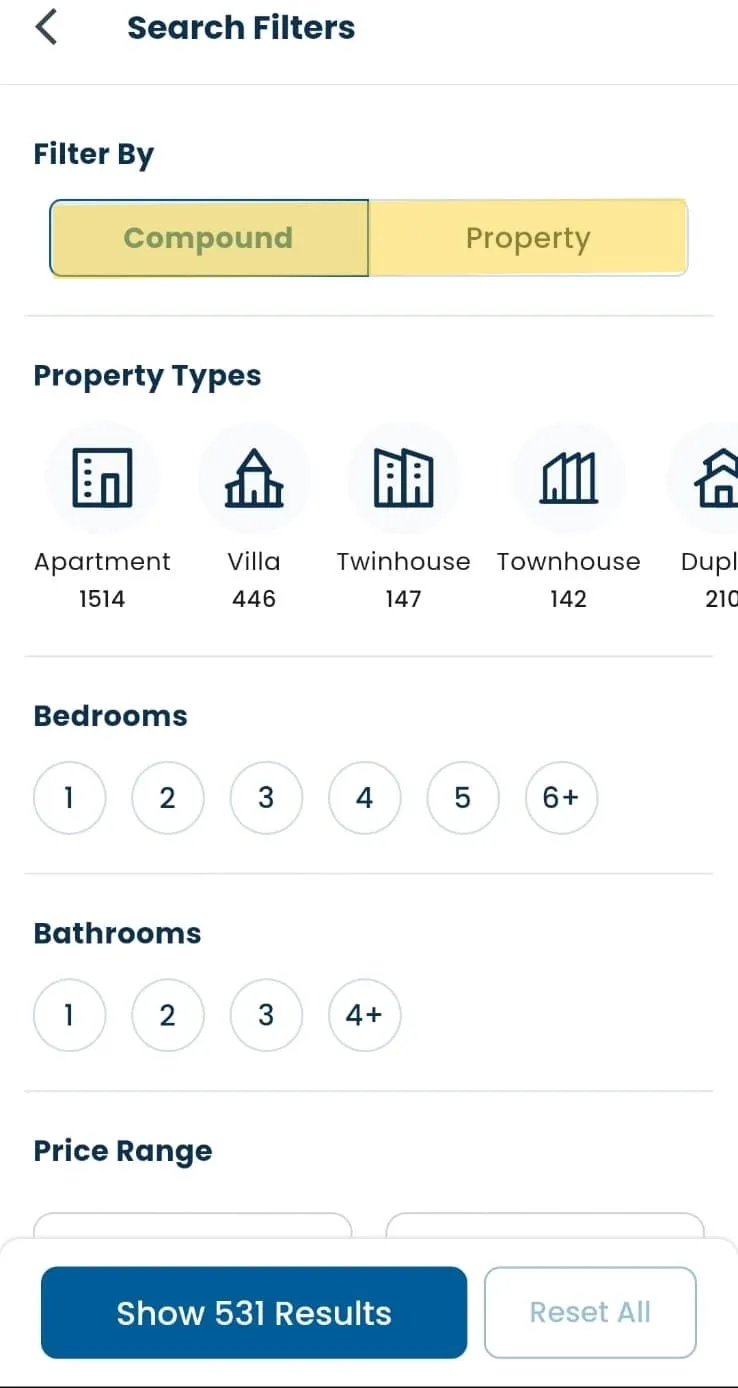
3. Click on the compare icon:
Once you choose the compound or the type of units you are searching for, tap on the compare button.
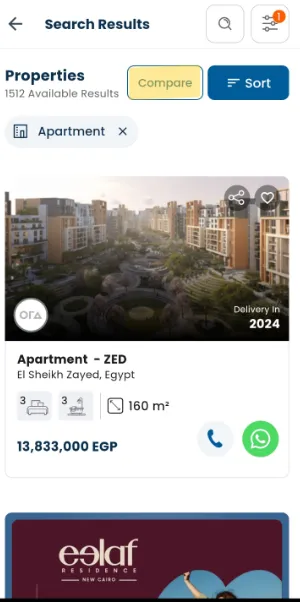
4. Select the units you want to compare:
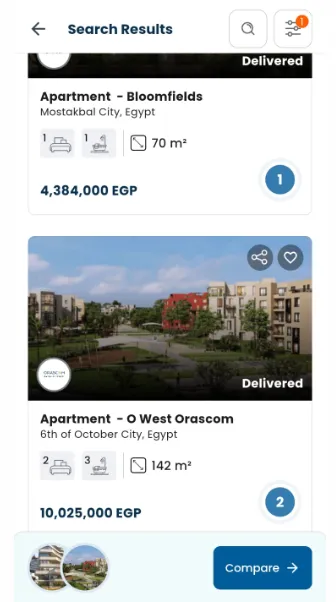
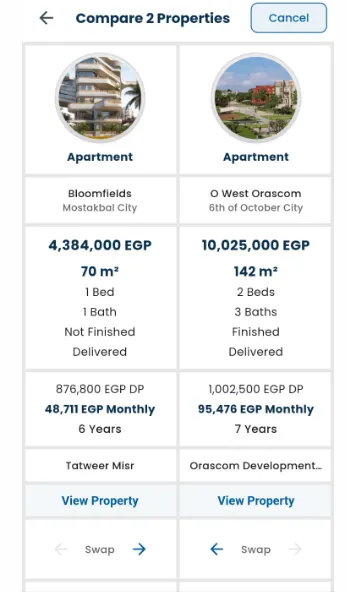
5. The comparison is ready:
Now, relax, and sip your coffee while you read the comparison of the units you have chosen.
It’s house-hunting made easy, and dare we say, fun!
Here, someone will raise a hand and ask, “How can I compare from my computer?” That’s what we’ll shed light on below.
Compare Properties From Nawy Website
Dear home-hunter, open your laptop and let’s start our journey on the Nawy Real Estate website.
1. Search for the area or compound:
After opening Nawy Website, search for any compound or area you are considering getting your new home in. Then click on the -compare- button on the right of the page.

2. Select what you want to compare:
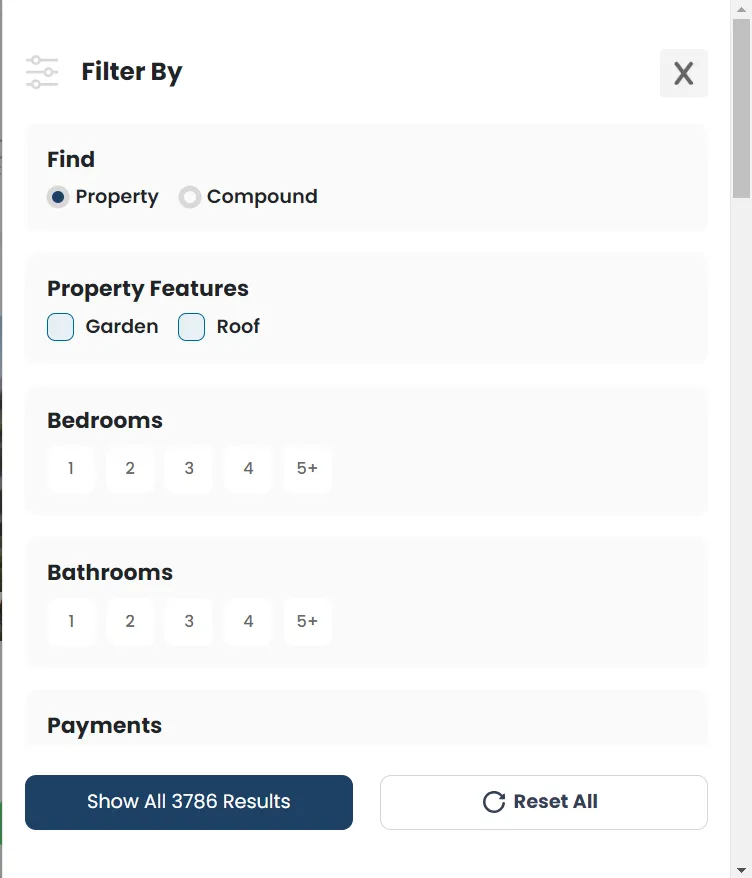
Do you want to compare compounds or properties? Select that and tap on – show all results- which is at the last of the page.
3. Choose the properties:
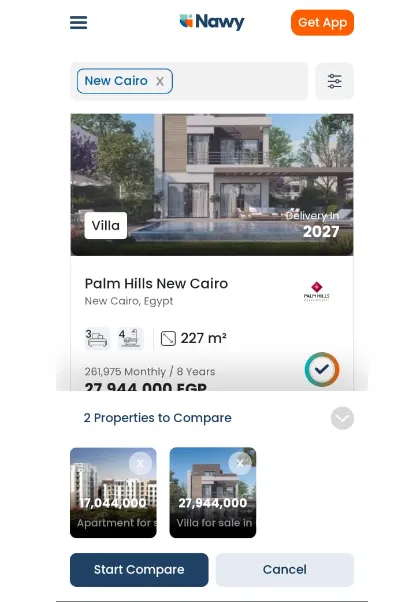
Select the properties you want to compare and tap on the – start compare- button at the last of the page.
4. The comparison is ready:
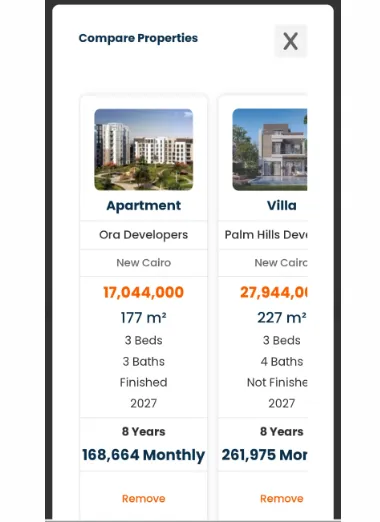
Here is the last step. After selecting the properties you want to compare, relax while you explore the information.
Final Thoughts
Download our App now. Or visit Nawy to embark on a journey filled with excitement, exploration, and seamless.
Your dream home is waiting to be discovered, and we’re here to make the magic happen.
Happy house-hunting!
FAQs
Can I compare properties by compound and area on Nawy?
In the meantime, you cannot compare properties from different areas; however, you can compare different compounds.
How can I use Nawy to compare prices between different developers?
By choosing two units of two different developers and applying the steps we mentioned above to compare them.
Can I search for properties by developer on Nawy?
Yes
How do I download and use the Nawy mobile application?
Search in the Apple Store or the Play Store for “Nawy Real Estate”, download it, and create an account.
Can I shortlist and compare my favorite compounds on the Nawy app?
Yes